


Procedures to apply for rice licence

1. Go to GoBusiness Licensing Portal website at https://www.gobusiness.gov.sg/licences.
2. Under Search by "Keywords",
(i) Type in the word "rice" and
(ii) Click "Search".

3. Under the "Rice Licence" in the Search Results, click "Add to Selection".

4. Click "Review & Apply (1)"

5. Click "Proceed".

6. Click "Apply".

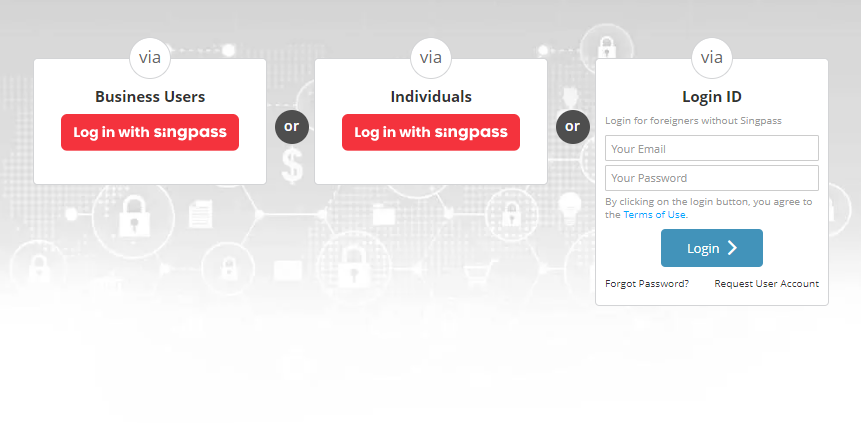
7. Choose your preferred login method and log in.
8. (i) Read the Terms of Use.
(ii) Click the "checkbox".

9. Select the appropriate radio button.

10. Check and fill in the Applicant's particulars.

11. Check and fill in the Applicant's Address.

12. Check and fill in the Organisation Details.

13. Check and fill in the Organisation Registered Address.

14. Fill in the Organisation Operating Address.

15. Fill in the Organisation Contact Details.

16. Fill in the Mailing Address and click "Next".

17. Read the licencing conditions and click on the "checkbox" if you agree to the conditions.

18. Under the Licence Selection,
(i) Read information of the various types of licence
(ii) Under "Select Only One", click on the licence you would like to apply.
(ii) Under Type of Rice, select or fill in the appropriate information if needed.

19. Answer the questions.

20. Click/ indicate the countries.

21. Fill in your supplier details if applicable.
If you have more than 1 supplier, click "Add" to insert more details.

22. (i) Select whether you sell rice to wholesalers.
If yes,
(a) Fill in the wholesaler's details.
(b) Fill in the brand details.
If you have more than 1 brand / supplier, click "Add" to insert more details.

23. Fill in your warehousing details.
If you have more than 1 warehouse, click "Add" to insert more details.

24. (i) Fill in your business details.
(ii) Check through the details in your form.
(iii) Click "Proceed".

25. Read the information and click "Confirm" to proceed with the application.

26. (i) Do you have any supporting document to provide to us online?
If no, change to select "Offline submission".
If yes, please click "Upload" to select your file.
(ii) Click "Next" to proceed.

27. (i) Review your application details.
(ii) Read the General Declarations and click on the "checkbox" if you agree.
(iii) Click "Submit" to proceed.

28. (i) Review the payment details.
(ii) Click "Proceed with Payment".

29. (i) After payment is made, you can click "View Receipt" or "Print" the receipt.
(ii) Click "Close" to end the session.
